False Reality Publishing

26 posts

Certificate Program

PLEM Academy Certificate of Completion Research and Internship Program Certification The PLEM Academy Certificate of Completion is awarded to members who successfully complete 12 months of active membership and finish a professional project as part of the Research and Internship Program. This certificate represents more than participation. It recognizes your […]

Learn Microsoft Office Tools

This is a Free Sample

How to Format a Microsoft Word Book or Homework Document for Math, Printing, and Organized Study

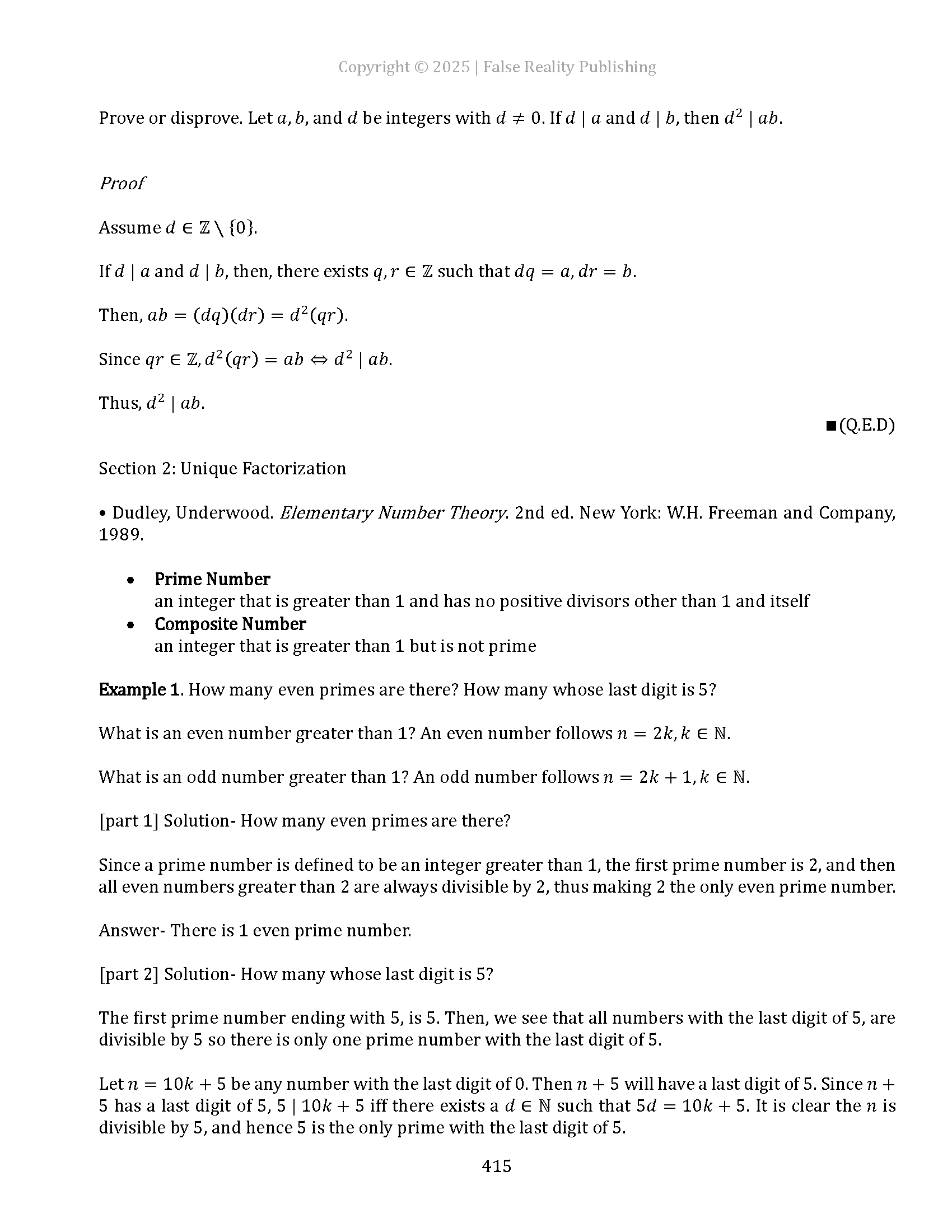
In this lesson, the focus is on building a clean and professional Microsoft Word document that can be used for math homework, college notes, printed books, or long term academic writing projects. The video walks through a practical system for organizing files, setting up Word styles, formatting equations, preparing headings, inserting a table of contents, and designing headers, footers, and page numbers for a polished final product.

Main Purpose of the Video

The main idea is to show students and writers how to create a document structure that is easy to read, easy to expand, and ready either for schoolwork or for physical publication. The example used in the video is a motivation themed book project built from podcast transcripts, but the same formatting strategy can be adapted for homework assignments, course notes, study guides, or full length educational books.

What the Project Is Becoming

The speaker explains that the project is part of a larger series in which daily motivation podcasts are being turned into organized books. Each book gathers a theme and develops it into a structured reading experience over eighteen weeks. In this case, the document begins as a volume focused on daily motivation for students starting college, but the broader lesson is really about how to prepare any serious document in Microsoft Word.

  • A podcast can become a book.
  • A transcript can become readable written material.
  • A daily project can be transformed into a long term organized publication.
  • The same formatting system can be used for student homework and professional publishing.

Step 1: Organize the Project Files First

Before working inside Word, the video stresses the importance of file organization. Files are numbered in a way that makes them fall into order automatically. This is a simple but powerful workflow because it keeps audiobooks, transcripts, chapter files, and supporting materials arranged correctly without constant manual sorting.

That approach matters because large projects quickly become cluttered. A document system works better when the folder structure and file naming pattern are already under control. In other words, formatting starts before typing. It starts with how the project is stored.

Step 2: Activate the Equation Editor for Math Typing

One of the first practical formatting tips in the video is how to make typing mathematics easier inside Microsoft Word. The method shown is to create a keyboard shortcut for inserting equations. This allows the user to instantly open the equation editor rather than searching through menus every time a formula needs to be written.

  • Go to Tools.
  • Choose Customize Keyboard.
  • Find the command for Insert Equation.
  • Assign a shortcut, such as Command + E.

This makes math input more natural and efficient. The speaker emphasizes that once this is set up, writing expressions becomes intuitive and fast. For students in mathematics, physics, engineering, or related subjects, this is one of the most useful small improvements you can make.

Step 3: Set the Normal Style for the Entire Document

The next major step is modifying the default Normal style. This is important because the normal style affects the base appearance of the document. Rather than formatting every paragraph by hand, the video recommends editing the style itself so the whole document stays consistent.

The formatting choices shown in the video include:

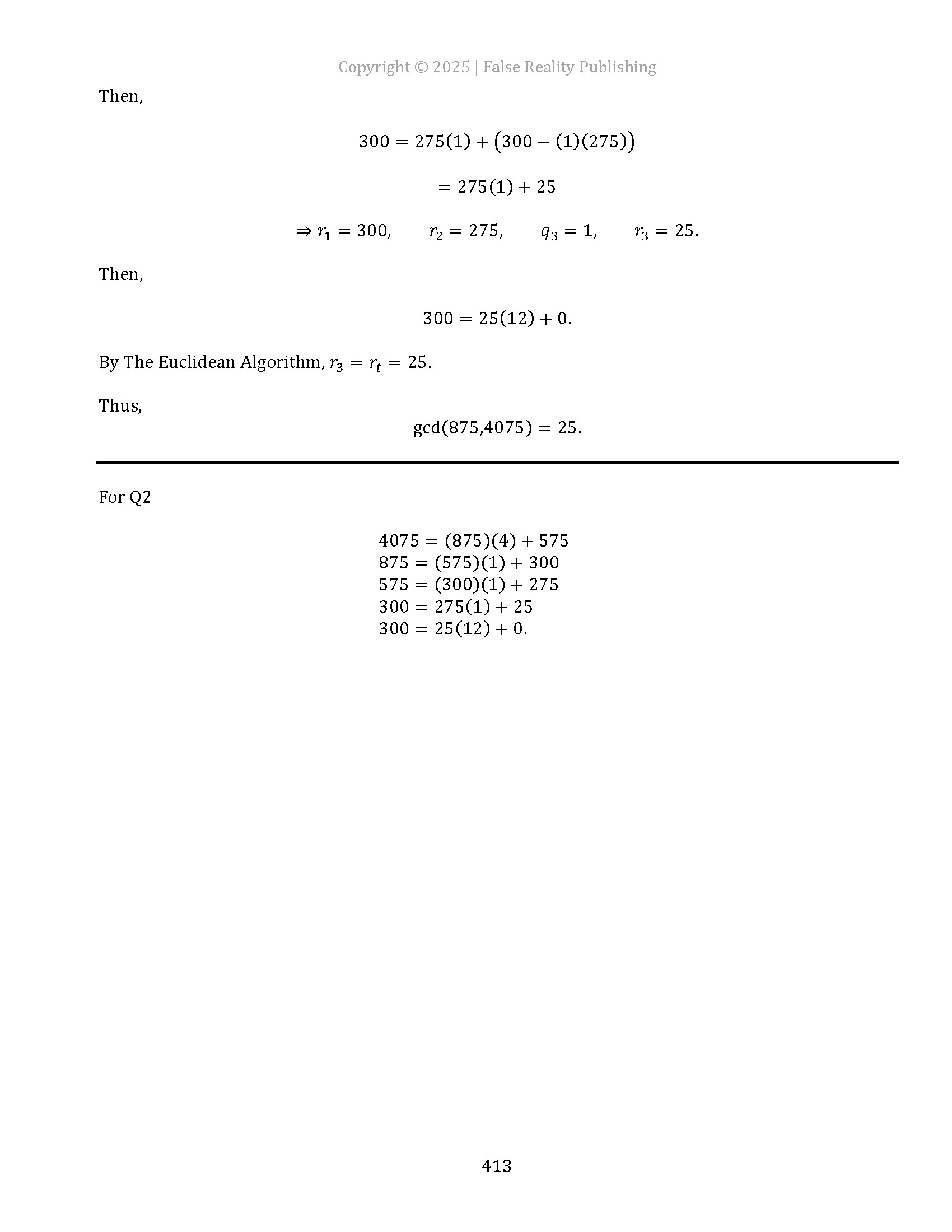
  • Change the font to Cambria Math.
  • Set the font size to 13.
  • Use justified alignment so the text lines up cleanly on both the left and right sides.
  • Remove extra double spacing to create tighter control over the layout.

This creates a document that looks more professional and is easier to read in printed form. The speaker also notes that Word does not always save formatting changes perfectly the first time, so it is worth checking that the font and size have actually updated throughout the document.

Step 4: Adjust the Page Size and Margins

The video then moves into page layout. For this particular project, the document is being prepared as a physically printed book rather than a classroom handout. Because of that, the page size is changed from the standard school format to a more novel sized format. The margins are also adjusted to account for the inside spine and outside edges of a printed book.

The speaker makes an important distinction here. Students doing homework would usually keep the page at 8.5 by 11 inches, but authors preparing books will often want a custom trim size. This is a good reminder that formatting depends on the final purpose of the document.

Step 5: Build Heading Styles That Control the Structure

A major part of the lesson is learning how to modify heading styles. Instead of manually changing every title, the speaker edits Heading 1 and Heading 2 so the document can scale properly as it grows.

Heading 1 is set up for major section titles.

  • Font: Cambria Math
  • Size: 17
  • Bold
  • Centered
  • Spacing tightened for cleaner presentation

Heading 2 is used for secondary sections.

  • Font: Cambria Math
  • Size: 13
  • Centered
  • Black text
  • Adjusted spacing for a compact, book like look

The lesson also points out that more heading levels can be activated as needed. For example, a student might use Heading 1 for chapters, Heading 2 for sections, and Heading 3 for individual problems or examples.

Step 6: Create the Title and Subtitle Properly

The title page is formatted carefully so that the document begins with a professional appearance. The title is centered, enlarged, and separated from the subtitle. The subtitle identifies the specific volume and theme of the book.

This part of the video demonstrates that a document should introduce itself clearly. A strong title page is not just decorative. It tells the reader what the work is, how it is organized, and where it belongs within a larger series.

Step 7: Insert Page Breaks to Separate the Major Parts

The speaker uses page breaks to divide the document into logical sections. This is a key habit for serious writing because it prevents content from drifting awkwardly across pages when edits are made later.

The document is separated into major parts such as:

  • Title page
  • Copyright page
  • Table of contents
  • Day or chapter sections
  • Transcript and summary sections

This structure makes the file easier to navigate and gives the finished product a more formal layout.

Step 8: Use the Table of Contents as a Navigation Tool

Once the headings are in place, the table of contents can be inserted automatically. This is one of the greatest benefits of using styles correctly. Instead of creating a table manually, Word generates it from the heading structure.

The speaker explains that this works well for books, but it can also help students who want to organize notes by chapter, section, and problem type. A well designed table of contents allows readers to move through a large document quickly and logically.

Step 9: Set Up Mirrored Page Numbers for Print

Another publishing detail shown in the video is the placement of page numbers on the outside edges of the pages. This creates the mirrored effect used in printed books, where page numbers appear on opposite outer corners as the reader opens the book.

This is especially useful for physical publishing because it makes the layout feel intentional and traditional. The speaker notes that this is not necessary for regular homework, but it is a strong technique for anyone creating a print ready manuscript.

Step 10: Add Professional Headers and Footers

The video also shows how to create different headers and footers for odd and even pages. This gives the document a polished book design and helps readers remain oriented as they move through the text.

Examples shown include:

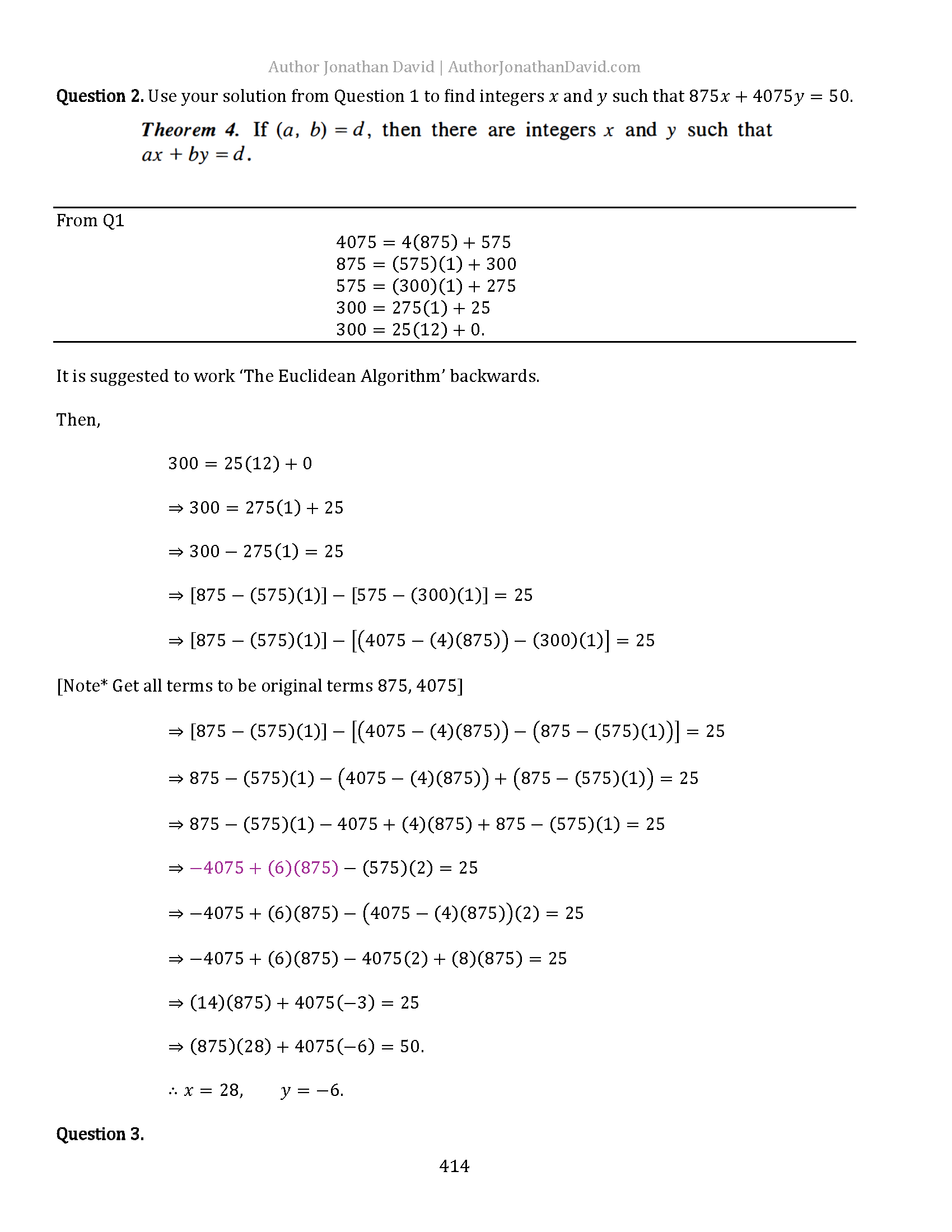
  • The author name in one header
  • The publishing or project name in the opposite header
  • Copyright and website information in the footer
  • Mirrored alignment that matches left and right facing pages

Even for students not publishing books, this section teaches an important principle. Documents become much easier to manage when recurring identifying information is placed in headers and footers rather than typed repeatedly in the body.

How the Book Content Is Organized

After setting up the document framework, the speaker explains how each daily entry will be built. A single topic, such as Day One: Struggling with College, becomes a structured section inside the book. Within that section, the material is divided so the reader can engage with it in different ways.

Each entry may include:

  • A heading for the day or topic
  • The original transcript
  • An AI generated summary for a shorter and more readable version
  • A longer original version for readers who want the full wording

This dual format is useful because it serves different readers. Some want the quick morning read. Others want the complete transcript exactly as it was spoken. The book therefore becomes both a summary guide and a full archive.

Why the AI Summary Matters

A major idea in the video is that spoken podcast material can now be transformed into readable nonfiction more efficiently. The transcript can be summarized into a shorter section that captures the key ideas without forcing the reader to work through every spoken phrase.

The speaker experiments with the length of the summary and decides that the best version is shorter, cleaner, and easier to read. Instead of making it long and repetitive, the goal is to produce a brief nonfiction style reflection that a student could read quickly in the morning.

This reveals an important writing principle:

  • Not all spoken material should remain in spoken form.
  • Good summaries make content more accessible.
  • Readers benefit from having both the full source and a refined short version.

How Students Can Use This for Homework

Even though the example in the video is a published motivation book, the lesson translates directly to student work. A student can use the same Microsoft Word setup to build better homework files, cleaner study guides, and more organized notes.

For homework, this method can help you:

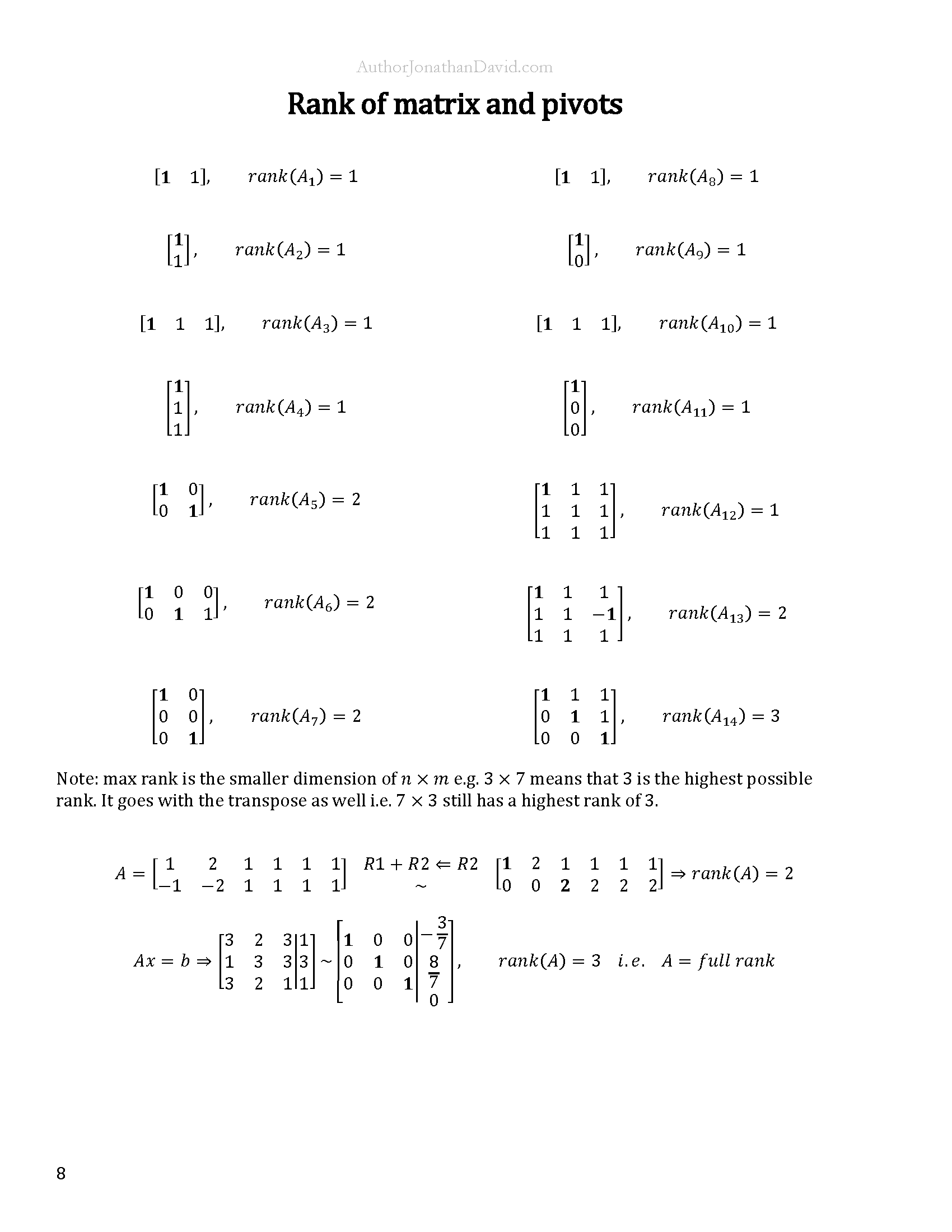
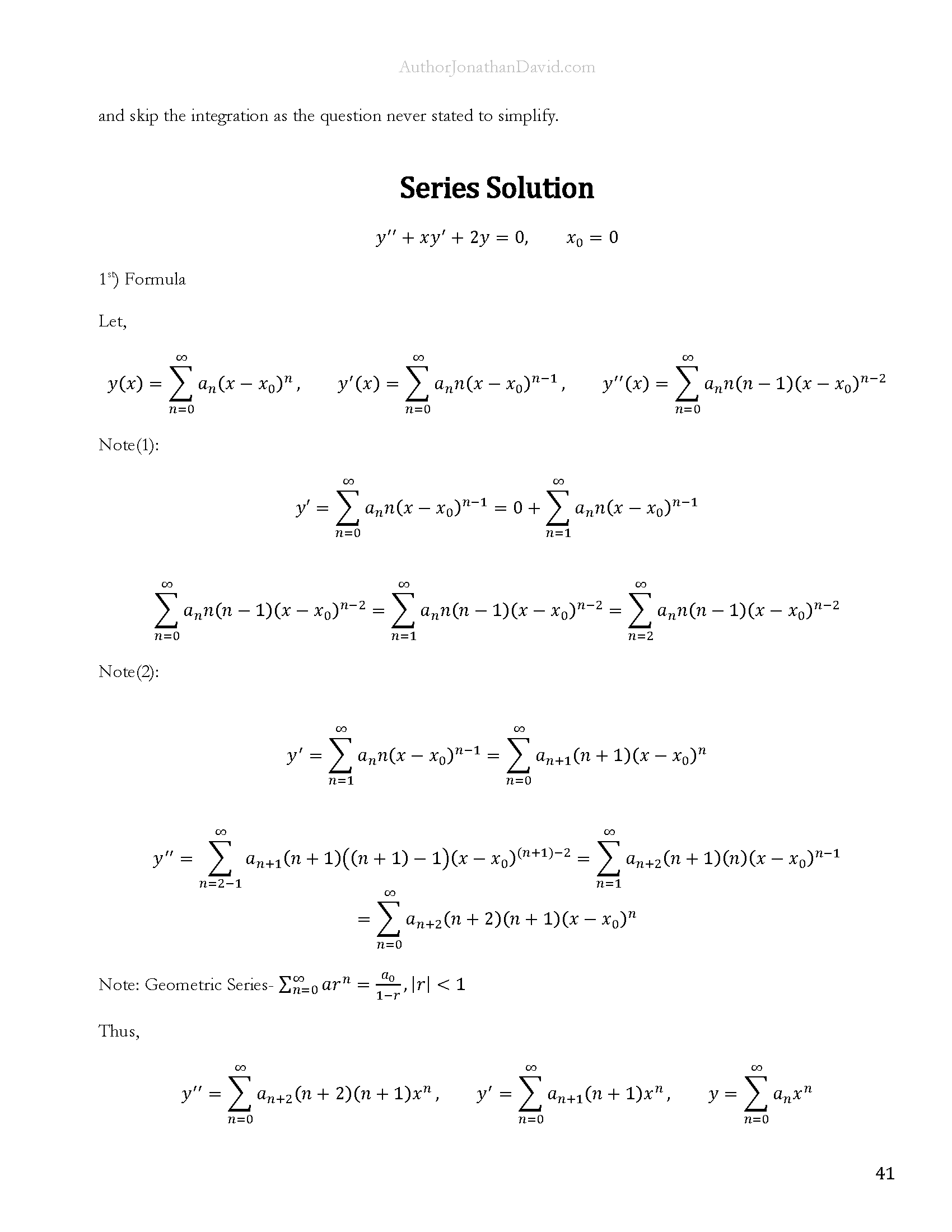
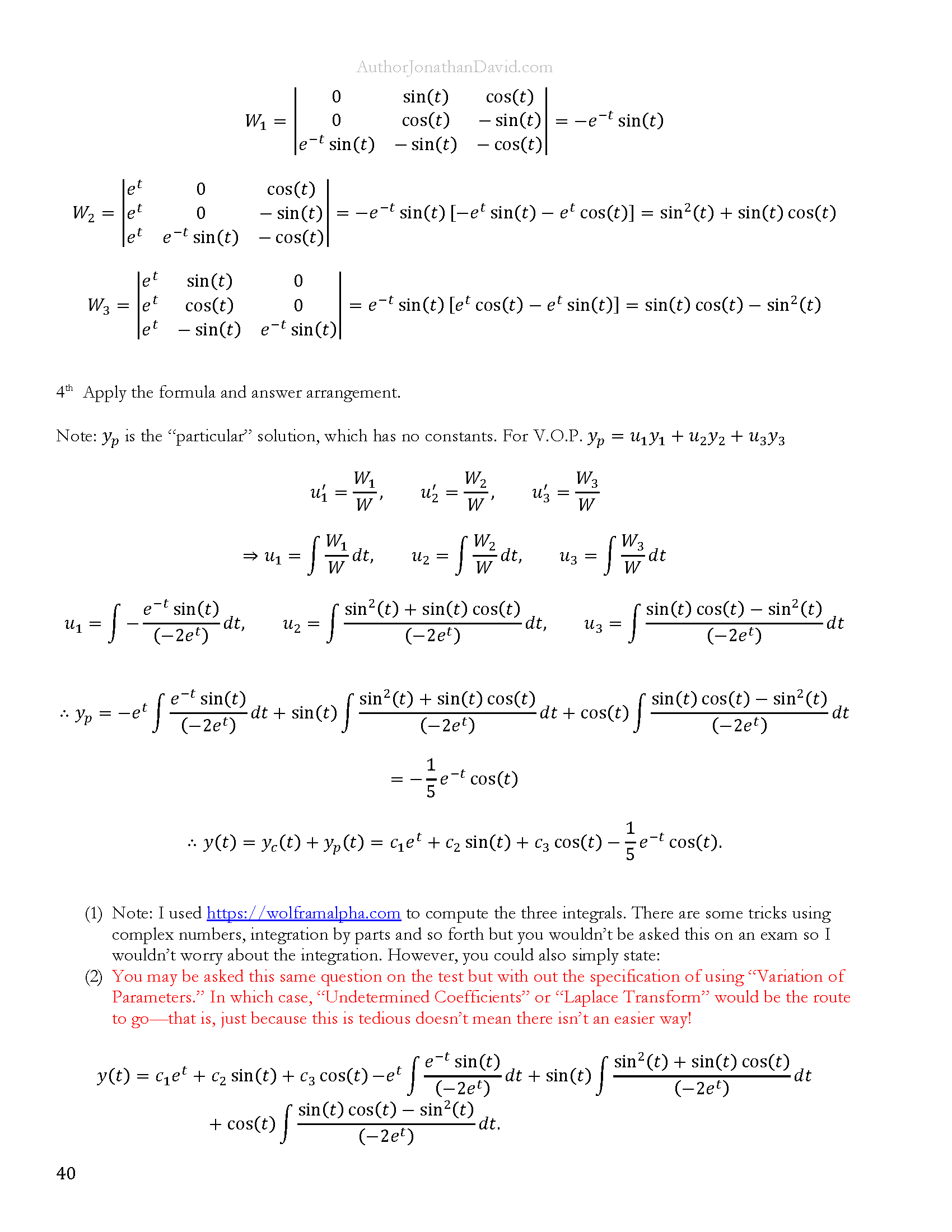
  • Type equations cleanly with a keyboard shortcut.
  • Keep your font and spacing consistent.
  • Use headings for chapters, sections, and problem numbers.
  • Create a table of contents for large note packets.
  • Prepare long term review documents for exams.
  • Turn class notes into something readable and searchable.

This is especially useful for students in technical fields, where organization and clarity can save hours of confusion later.

What This Video Really Teaches

At a deeper level, this video is about more than Word formatting. It is about treating academic and creative work like something valuable. Instead of throwing ideas into random files, the speaker builds a repeatable system. Instead of leaving transcripts messy, they become books. Instead of treating formatting as an afterthought, it becomes part of the intellectual process.

That mindset is important for anyone in college. When your notes, writing, formulas, and study materials are well structured, your thinking often becomes more structured as well. Good formatting is not just cosmetic. It supports better learning, better writing, and better long term organization.

Key Takeaways

  • Organize project files before you begin formatting.
  • Create a keyboard shortcut for the equation editor to make math typing fast.
  • Modify the Normal style so the entire document stays consistent.
  • Use Cambria Math and intentional spacing for a clean academic look.
  • Adjust page size and margins based on whether the document is for school or for print.
  • Edit Heading 1 and Heading 2 so the structure of the document remains scalable.
  • Use page breaks to separate major sections clearly.
  • Insert an automatic table of contents by relying on heading styles.
  • Use mirrored page numbers, headers, and footers for professional print formatting.
  • Combine original transcripts with shorter AI summaries to create flexible reading options.

Final Reflection

This lesson offers a practical system for turning ideas into organized documents that can be studied, shared, or published. Whether the goal is homework, note taking, textbook style writing, or building a full book from podcast material, the method remains the same: create a strong structure first, then let the content grow inside that structure. When done properly, Microsoft Word stops being just a typing tool and becomes a framework for serious academic and creative work.

PLEM Academy Research Position Membership Required

You must be a PLEM Academy Research Position member to access this content.

Join Now

Already a member? Log in here